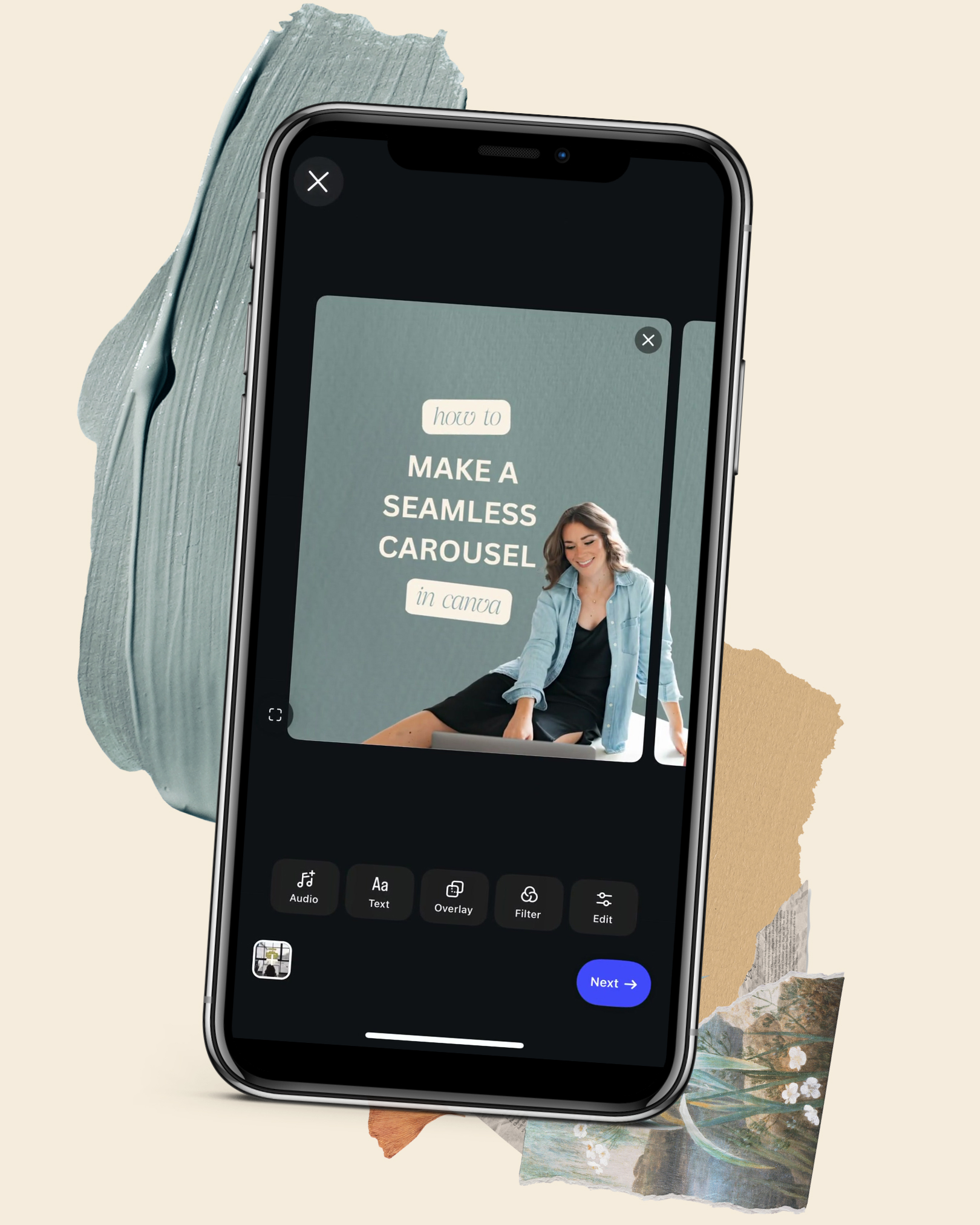
If you’ve followed me on Instagram for a while, you’ve probably noticed I love a carousel.
As a designer, they’re one of my favorite ways to share information because I can combine actual helpful content with, well… design. Photos, typography, little collage elements, screenshots — all the things I love.
And instead of designing each slide individually, I usually create mine as one long, continuous design and split it into individual slides when I’m done.
That’s what creates that seamless effect where an image, shape or graphic continues onto the next slide as you swipe.
And because I don’t believe in gatekeeping the fun stuff, I’m giving you my exact Canva template for free.
First: why carousels?
Besides giving you more room to actually say something, there’s a pretty good case for adding carousels to your Instagram strategy.
According to Metricool’s 2026 Instagram study, carousels generated nine times more saves than single-image posts and outperformed single images across its major metrics.
Socialinsider’s Q2 2026 benchmarks tell a similar story: carousels averaged a 0.50% engagement rate compared with 0.33% for single-image posts.
And honestly, the saves part makes a lot of sense to me.
A good carousel gives someone something to work through, learn from and potentially come back to later — instead of asking one single graphic to do all the work.
So, what actually makes a carousel “seamless”?
Instead of opening Canva and creating six separate 1080 × 1350px pages, I start with one really long canvas.
The height stays 1350px, and the width is 1080px multiplied by however many slides I want:
4 slides: 4320 × 1350px
5 slides: 5400 × 1350px
6 slides: 6480 × 1350px
Then I design the entire carousel as one piece.
This is where the fun part comes in: let things cross over where the slides will eventually split.
Have a photo continue onto the next slide. Let a shape stretch across two slides. Add a piece of tape, a flower, a screenshot or another little collage element right over the seam.
You don’t need everything to cross between slides. A few intentional overlaps are usually enough to make the whole thing feel connected.
How I split the carousel in Canva
Once the full design is finished, download it from Canva as a PNG.
Then, instead of trying to crop every slide yourself, you can use Canva’s Carousel Splitter app.
Open Apps in Canva and search for Carousel Splitter. Upload your finished long PNG, choose how many slides you want it divided into, and let the app split the image into equal pieces for you.
You’ll end up with your individual 1080 × 1350px slides, ready to upload to Instagram in order.
That’s it. No manually lining things back up. No guessing where one slide ends and the next begins.
Or… just steal my setup.
If you’d rather skip the math and start with mine, I made the exact Canva template I use available for free.
It’s already sized and set up for a seamless carousel, so you can swap in your own colors, fonts, photos and content and make it completely your own.
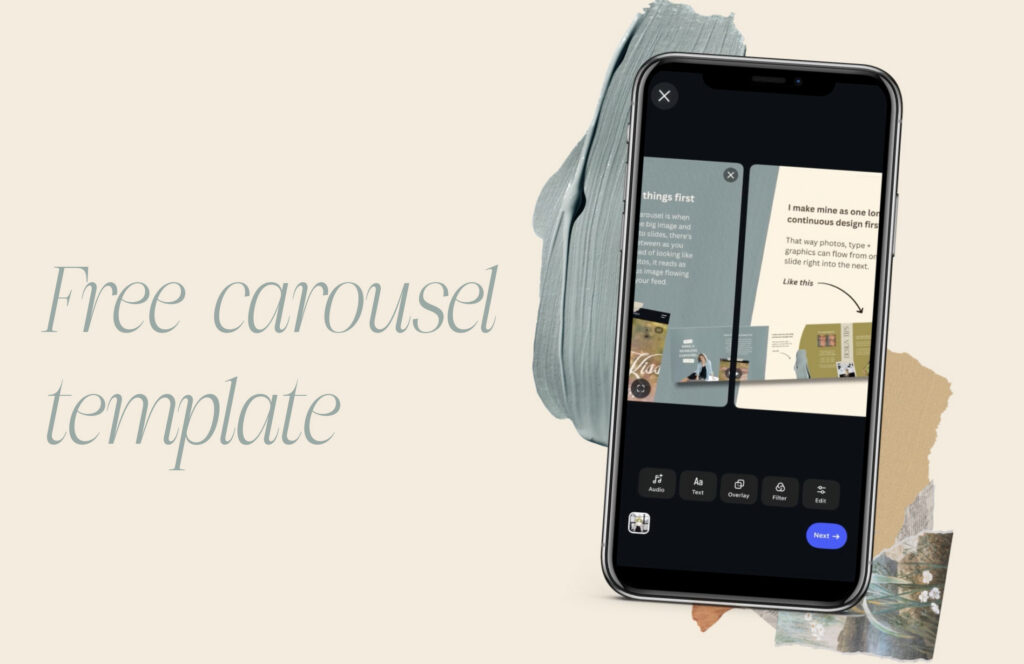
Grab the Free Carousel Template →
And nope — you don’t need Canva Pro!